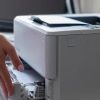
Did you receive a request for your meter read?
Need a refresher on how to submit it? – Check out the step by step instructions below
Step 1: Stop having to check your meter read on your own! Did you know that CHQS can monitor your service, supply, and meter reading prompts? E-mail Service@CHQS.com and ask about Print Tracker!
Step 2: If you choose to manually check your meter read, you will need to go ot the billing tab of your user interface. Meter reads can be called
- IMPRESSIONS
- CLICKS
- METERS
Step 3: Reply to the request or enter your data here Meter Read Submission. For monochrome machines, a black and white meter is the only meter response needed. You may be asked for color and total impressions if the machine is equipped with color printing capability.
Still puzzled? Click the chat button on the right and we can walk you through it!